
eSIM User Guide
■ Good eSIM Pre-Use Checklist
- Please make sure your smartphone supports eSIM.
View compatible devices - Orders cannot be canceled or refunded, except where required by applicable law.
View our Refund Policy - An eSIM cannot be reissued once it has been deleted.
If you experience any issues, please contact us before removing the eSIM. - Please make sure your device is SIM-free (unlocked) or carrier unlocked.
- An internet connection (Wi-Fi or mobile data) is required to activate your eSIM.
Please complete the setup in a location with a stable internet connection.
Collapsible content
How to check SIM lock
For iPhone :
- Open "General" from the Settings app
- Opne "Info"
- Check the "SIM lock" listed at the bottom. If the SIM is locked, you will need to unlock it.
For Android :
- From the settings screen,open "Device Info"
- Open "SIM Status"
- Check the "SIM lock status". If it says "Allowed", the SIM is unlocked. If you are unable to confirm using the above method, we recommend that you check with the store.
If you are unable to confirm using the above method, we recommend that you check with the store.
How to unlock the SIM
Japanese mobile carrier only
In the case of au...
You can do this yourself through My au, or at an au shop.
To cancel via My au...
1. Check the IMEI number of your device using one of the following methods
● Enter "*#06#" on the dialing screen
● For android, go to Settings > About phone > Status
● For iPhone, go to Settings > General > About
2. Access the My au SIM unlock availability page, enter your IMEI number, and click "Determine"
3. If the result is "〇", click on the "Proceed here" link to proceed.
4. Check that the displayed phone number and model name are correct, then click Select.
5. Enter the 4-digit PIN you set when signing up and click Next.
6. Check the checkboxes for notes and reasons for cancellation, then click "Apply with these details" to complete the process.
In the case of docomo...
You can do it yourself via docomo online, at a docomo shop (free for up to two devices per person), or over the phone.
* Models manufactured before May 2015 can only be unlocked at a Docomo shop.
To unlock the SIM lock using docomo online...
1. Check the IMEI number of your device using one of the following methods
● Enter "*#06#" on the dialing screen
● For android, go to Settings > About phone > Status
● For iPhone, go to Settings > General > About
2. Access My docomo
3. Click on Docomo Online Procedures and proceed to "SIM Unlock → Procedure"
4. Enter your ID and password to log in to My Docomo
5. Enter your IMEI number and click "Next"
6. Check the notes and click "Complete the procedure" to complete the application.
In the case of Softbank...
You can do it yourself through My Softbank, or at a Softbank shop.
To unlock the SIM using My Softbank...
1. Check the IMEI number of your device using one of the following methods
● Enter "*#06#" on the dialing screen
● For android, go to Settings > About phone > Status
● For iPhone, go to Settings > General > About
2. Access My SoftBank and log in with your mobile phone number and password.
3. For PC, go to the tab to check and change your plan/options > Procedures for models eligible for SIM unlocking. For smartphones, go to check and change your contract > Procedures for models eligible for SIM unlocking.
4. Enter your IMEI number and click Next.
5. Check the notes and click "Cancel"
6. Click "See how to unlock your SIM" and follow the instructions to complete the process.
How to Purchase an eSIM
STEP 1 Purchase Your eSIM
Choose the eSIM plan that best matches your destination and trip duration, then complete your purchase.
⚠️ Purchasing Multiple Plans
If you purchase multiple different plans in a single order, only one QR code will be displayed in your My Page.
The remaining QR codes will be sent to you by email.
If you would like to manage all QR codes in My Page, please purchase each plan in a separate order.
STEP 2 Receive Your QR Code
Your QR code will be issued after your payment has been confirmed.
■ View in My Page
Click your Order Number (#) from your order history to view the QR code at the bottom of the order details page.
■ Receive by Email
Please allow emails from adminhk@tsimtech.com.
* Emails may be filtered as spam by some mobile carriers (such as docomo, au, and SoftBank). Please check your spam/junk folder if you do not receive the email.
STEP 3 Install Your eSIM
Before you travel, scan the QR code to install your eSIM.
STEP 4 Connect at Your Destination
Turn on Data Roaming and set your eSIM as the Mobile Data line to start using mobile data.
* Your plan becomes active when your eSIM first connects to a supported network in your destination.
How to set up an eSIM
When should I install an eSIM?
The timing for installing eSIM is explained on the following page!
Confirmation after setting up eSIM
After adding an eSIM, you need to turn on roaming for the added eSIM.
How to set up roaming
Click here to learn how to switch between your main line and an additional eSIM
How to check data usage and expiration date after purchase
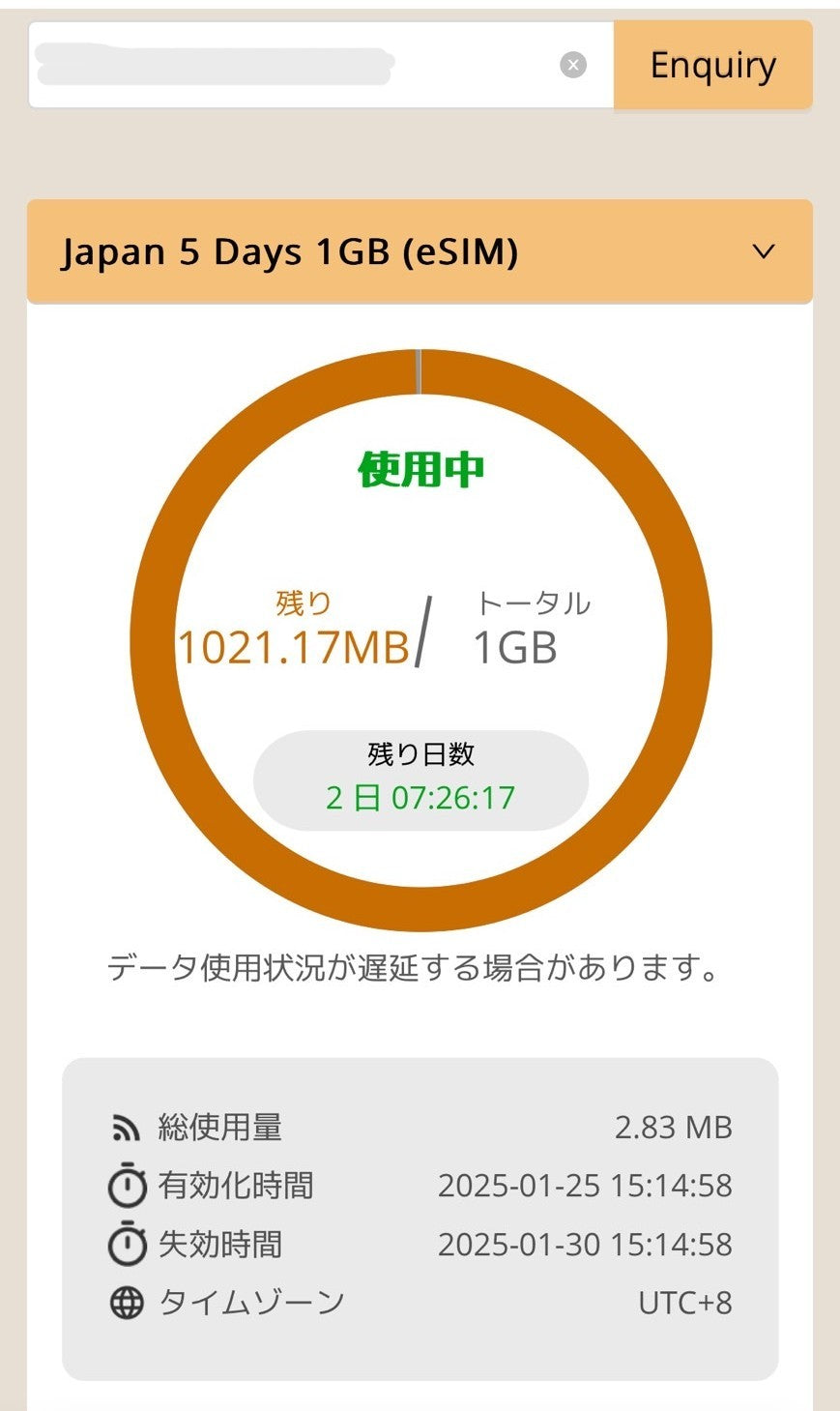
You can check the data validity period and usage on this page.
https://search.t-sim.hk/dataplan/group/website
You will need the ICCID that is distributed along with the QR code.